
Component overview
PineXQ Components
Section titled “PineXQ Components”There are a few core components which interplay in PineXQ. An understanding of those are very beneficial to understand PineXQ. Of course there are more internal components required to provide a running platform instance, but here we want to give an overview which will help users of PineXQ to build a mental model and be comfortable working with PineXQ.
High level concept
Section titled “High level concept”PineXQ’s architecture is centered on the JobManagement-Application (JMA), which provides a public API. The JMA contains the system’s core business logic, ensuring only valid operations are executed while handling permissions and data visibility.
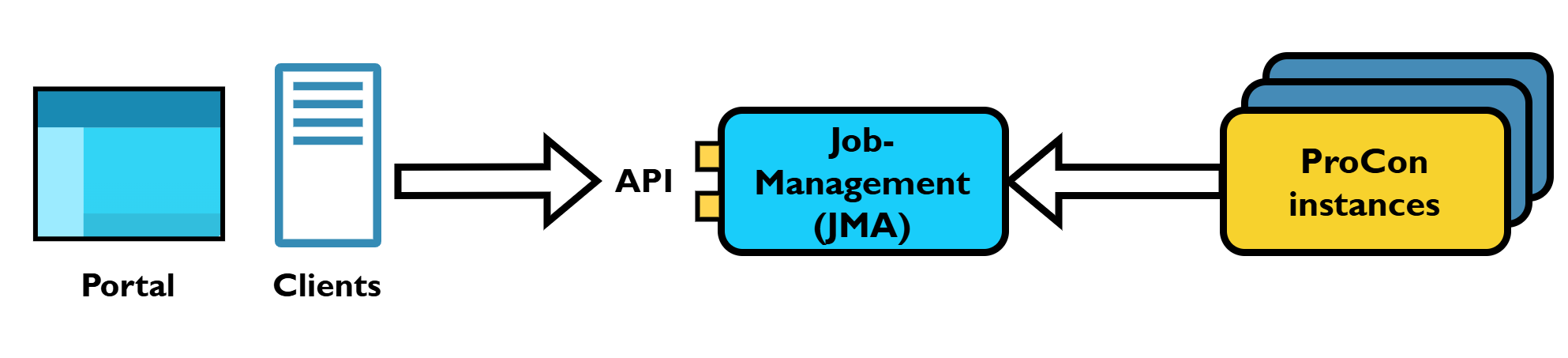
Users interact with the system through this API, primarily via two main channels:
- The Portal: A web application offering a visual user interface.
- The PineXQ Python client: A PyPI package providing convenient programmatic access.
The JMA manages and delegates the actual computation to ProCon instances (Worker), a lightweight wrapper for Python code, typically deployed as Docker containers.
Common way of working with PineXQ
Section titled “Common way of working with PineXQ”Usually when working with PineXQ a user will configure and execute a computation Job. A user generally follows these steps:
- Creating a Job, this is the instance of a computation.
- Selecting a ProcessingStep (the function to compute) and assigning it to the Job.
- Optional, configure parameters for the ProcessingStep
- Optional, query data (WorkData) and assign it to the Job to use with the ProcessingSteps DataSlot
- Start execution
- Wait for completion (or error)
- Review result and produced data.
These steps can be done using the Portal and the PineXQ client.
Logical concepts
Section titled “Logical concepts”The API is built around several logical core concepts, primarily: Job, WorkData, and ProcessingStep.
These make up the primary objects a user interacts with via the API.
WorkData
Section titled “WorkData”PineXQ manages all files required or produced during execution, handling both storage and associated metadata. Key metadata includes:
- Ownership: Defines who can manage the data.
- File Name: A human-readable name.
- Creation Date: When the file was added to PineXQ.
- Media Type: See MIME types
To ensure data integrity, PineXQ actively tracks file usage. This prevents the accidental deletion of data needed for planned executions or required for maintaining data lineage.
ProcessingStep
Section titled “ProcessingStep”PineXQ acts as a host for functions called ProcessingSteps. These ProcessingSteps are either deployed by administrators as “built-in” functions or added by individual users.
A ProcessingStep manifest is an abstract definition of a function. It contains the information required to configure a compute Job, while also helping users find and understand the function.
This manifest file is generated by a ProCon instance, which uses introspection of the function’s parameters, leveraging Python’s type annotations and decorators.
Key information in the manifest includes:
- A human-readable
titleanddescription - The
function namein ProCon and itsversion - JSON-Schema of the
parameters - JSON-Schema of the
result - Required
input and output files(DataSlots)
To add a new function to PineXQ, its ProcessingStep manifest is registered via the API. From then on, the JMA is aware of the function and allows it to be used in Jobs.
Parameters
Section titled “Parameters”Parameters can range from simple primitives, to lists and full classes and are specified by the ProcessingStep manifest and validated against the extracted schema. It is possible to specify default parameters along side the ProcessingStep, which will be used when configuring a Job.
DataSlots
Section titled “DataSlots”ProcessingSteps may require WorkData (aka files) as input when data is too large to be in a configuration, is created externally or can not be passed as text like images or binary data. WorkData is passed to a ProcessingStep in a DataSlot. DataSlots has two main properties:
- MIME type: Which specifies the kind of data acceptable, e.g.
application/json,text/plainorimage/bmp.application/octet-streamserves as binary wildcard. - IsCollection: Determines if a list can be passed.
A Job represents a concrete, executable instance of a ProcessingStep. It bundles the configured ProcessingStep with its specific parameters, data and execution.
The JMA guides the user by validating all parameters and data, ensuring that only fully configured jobs can be started. After execution, it makes the job and its results easily discoverable.
Crucially, the JMA establishes data lineage. It achieves this by tying all parameters and input/output data to the job and protecting them from deletion (optional). Since a computation’s result depends solely on its inputs, this process creates a permanent record, making it possible to always trace which data led to a specific output.
Selecting a ProcessingStep
Section titled “Selecting a ProcessingStep”To start configuring a Job the desired ProcessingStep needs to be configured for a Job. From that the job will derive if further configuration is required.
Configuration
Section titled “Configuration”For a job to be started it needs to be fully configured. The selected ProcessingStep will specify what is needed, parameters and or DataSlots.
Starting a Job
Section titled “Starting a Job”Once configuration is complete a Job can be scheduled for execution. For that all configuration is compiled to to a JobOffer and passed to a proper worker for execution.
Job states
Section titled “Job states”A job goes through several states from creation to completion.
---
title: Job states and transitions
---
stateDiagram-v2
  [*] --> Created
  state Created <<choice>>
  Created --> DataMissing: ProcessingStep selected, requires configuration
  Created --> ReadyForProcessing: ProcessingStep selected

  DataMissing --> ReadyForProcessing : Configuration complete

  ReadyForProcessing --> Pending: Job started by user
  Pending --> Processing : Job scheduled to worker

  Processing --> Completed: Worker completes
  Processing --> Error: Execution encounters error

  Error --> [*]
  Completed --> [*]

  %% not yet implemented
  %%Pending --> Canceled
  %%Processing --> Canceled
  %%Canceled --> [*]
- Created: Job was created in the API, needs selection of a ProcessingStep
- DataMissing: The Job requires configuration of parameters and or DataSlots
- ReadyForProcessing: Job is configured with ProcessingStep and required data
- Pending: The Job has been started by the user and waits for a Worker to execute it.
- Processing: The Job is currently executed.
- Completed: The Job is completed.
- Error: During execution by a worker a error occurred and the Job failed.