
Deploying a Step
Setting up
Section titled “Setting up”uvx --from pinexq-cli@latest pinexq generate dockerfileuvx --from pinexq-cli@latest pinexq generate pinexq-tomluv tool install pinexq-clipinexq generate dockerfilepinexq generate pinexq-tomlpipx install pinexq-clipinexq generate dockerfilepinexq generate pinexq-tomlYou can then edit the templates as needed. For instance, if the step you wish to implement is not in the default entrypoint main.py:
[project]name = "myprocon"pinexq_endpoint = "api.pinexq.net"entrypoint = "src/my_step.py" # Your step file, relative to Docker context
[deployment]cpu = "1"memory = "4Gi"disk = "10Gi"max_replicas = 4
Make sure that you have decorated your step functions with @version! This information will be included in the manifests, and will be used when deploying.
Deploying
Section titled “Deploying”Once your configuration is set up, call
uvx --from pinexq-cli@latest pinexq deploy --api-key="your-api-key"pinexq deploy --api-key="your-api-key"Alternatively, you can set the environmental variable PINEXQ_API_KEY, and simply call pinexq deploy.
The deployment command uses your TOMLs and Dockerfile to deploy your step function.
Note that this example command will deploy all public functions of your step; to select only one, use e.g. pinexq deploy -f my_function.
More advanced configuration options are also available, such as per-function configuration of defaults and settings. For more information, refer to Configuration pinexq.toml,
or call pinexq deploy --help.
Note: pinexq deploy uses uv to install and manage dependencies.
You will need to call uv lock to produce a compatible lockfile; you may also wish to test with uv sync before deploying.
Advanced users should set any uv options via environmental variables to ensure consistency throughout the process, e.g. $UV_PRERELEASE="allow" instead of --prerelease=allow.
Add a private package feed
Section titled “Add a private package feed”If your project depends on packages from a private registry (such as a private PyPI or a uv index), you should manage these credentials using Docker secrets. This prevents sensitive information from being baked into your image layers. In your Dockerfile, you can mount these secrets as environment variables during the uv sync process. Then, when deploying via the CLI, use the –secret flag to map your local environment variables to the secret IDs defined in your Dockerfile.
Example Configuration:
Section titled “Example Configuration:”- Configure your package feed in pyproject.toml
[[tool.uv.index]]name = "private-feed"url = "https://<your-feed-url>/api/packages/pinexq/pypi/simple/"authenticate = "always"- Dockerfile: Use –mount=type=secret to expose credentials to the uv command.
RUN --mount=type=cache,target=/root/.cache/uv \--mount=type=bind,source=uv.lock,target=uv.lock \--mount=type=bind,source=pyproject.toml,target=pyproject.toml \--mount=type=secret,id=index-usr,env=UV_INDEX_PRIVATE_FEED_USERNAME \--mount=type=secret,id=index-pw,env=UV_INDEX_PRIVATE_FEED_PASSWORD \uv sync --locked --no-editable --link-mode=copy --no-install-project- Deployment: Export the credentials locally and pass them to the
pinexq deploycommand.
export UV_INDEX_PRIVATE_FEED_USERNAME=patexport UV_INDEX_PRIVATE_FEED_PASSWORD=mypassword
pinexq deploy \    --secret id=index-usr,env=UV_INDEX_PRIVATE_FEED_USERNAME \    --secret id=index-pw,env=UV_INDEX_PRIVATE_FEED_PASSWORD
Managing your deployment
Section titled “Managing your deployment”Information about your steps and their deployment can be viewed on the portal. Here you can view information about the step function, make it public, configure its deployment, or even delete the function.
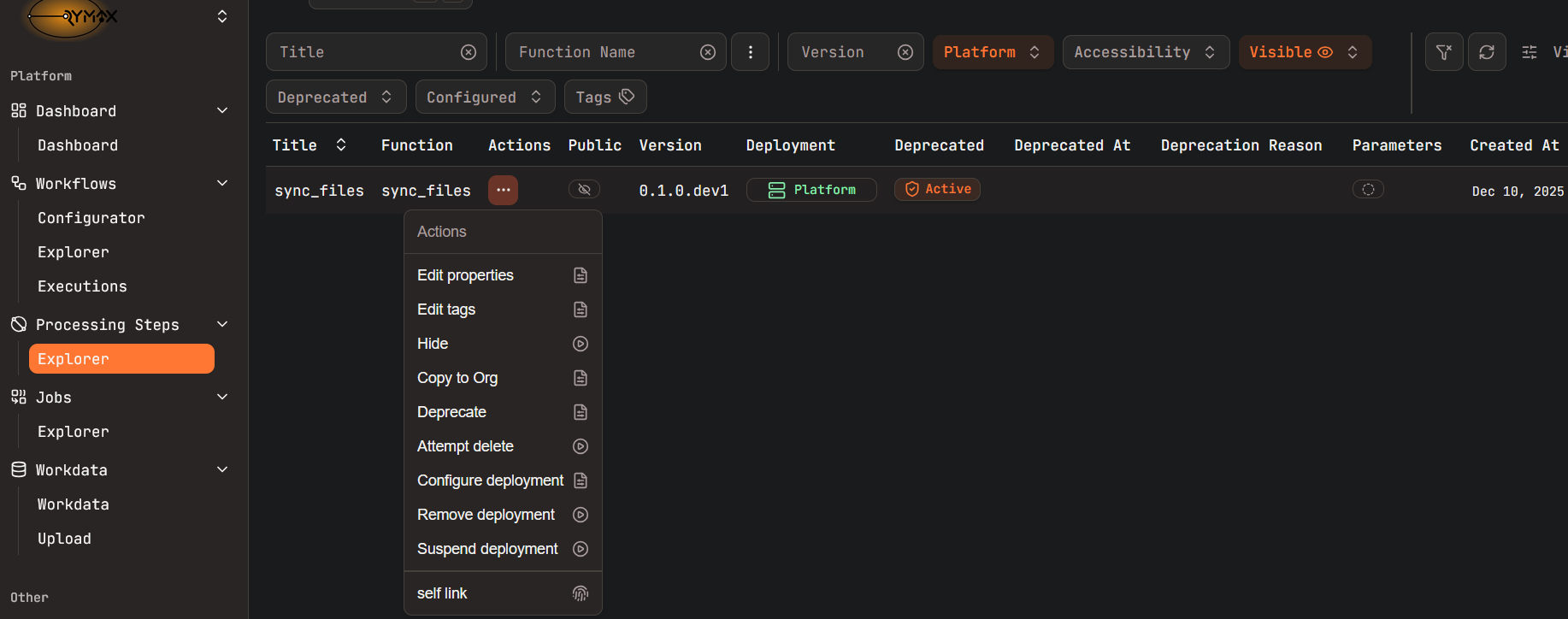
As a reminder, due to data lineage, all dependent jobs must be deleted before a step can be deleted. You may instead hide or deprecate the step, if you wish for it to no longer be used.
Resources
Section titled “Resources”Each worker of a deployed step reserves CPU, memory and disk. You state them in the pinexq.toml, either explicitly or by naming a (deprecated) resource preset, and can change them later on the portal:
[deployment]cpu = "2" # cores, e.g. "500m" or "1.5"memory = "8Gi" # e.g. "512Mi" or "8Gi"disk = "20Gi"max_replicas = 4The values are Kubernetes quantities. They must convert exactly to whole millicores for CPU ("250m", "2"), whole MiB for memory and whole GiB for disk ("512Mi", "16Gi", "1Ti").
Without any resources, a step gets the Medium preset.
How a worker uses its resources:
- CPU is reserved, not capped. A worker always gets the CPU it states and may use more while the node has CPU to spare.
- Memory is reserved in full and is also the limit. A worker that uses more is killed (out of memory) and its job fails.
- Disk is reserved in full and is also the limit for the worker’s local files. A worker that writes more is evicted and its job fails.
If your worker becomes non-responsive or its jobs fail while processing, it may have run out of memory or disk: give it more.
A worker runs on a single node, so its resources cannot exceed the largest node: 15.4 cores, 59 GiB memory and 325 GiB disk. The platform rejects a deployment that asks for more.
Resource presets
Section titled “Resource presets”A preset is a shortcut for fixed resources:
| Preset | CPU | Memory | Disk |
|---|---|---|---|
| XSmall | 250m | 512Mi | 3Gi |
| Small | 500m | 1Gi | 5Gi |
| Medium | 1 | 4Gi | 10Gi |
| Large | 3 | 14Gi | 70Gi |
| XLarge | 6 | 28Gi | 200Gi |
| XXLarge | 14 | 59Gi | 300Gi |
A step deployed with a preset shows these values on the portal. To move off a preset, state its values, or better ones,
as cpu, memory and disk: most steps use far less memory than Medium, and a smaller reservation lets more workers run at the same time.
Deploying a remote worker
Section titled “Deploying a remote worker”In certain situations, whether for testing or production, you may wish to host a worker on your own hardware, outside the pinexq platform. To do so, you must first register your function:
uvx --from pinexq-cli@latest pinexq register --api-key="your-api-key"uvx --from pinexq-cli@latest --prerelease=allow pinexq register--api-key="your-api-key"pinexq register --api-key="your-api-key"You may then run your worker on your machine using the CLI. Note that when deploying a step, registration is handled automatically; however, if you implement an existing step using a remote worker, your worker will compete with existing platform workers for jobs, which is usually not desirable.